
-

Infiniteguess


 2022-11-18 23:00:07 UTC
 Guess Guide: Thumbnail Submissions
I got bored of the “lesson numbers” so I’m just gonna remove it, anyways, today I’ll be showing you how to submit thumbnails for stickfigure submissions if you don’t already know how to. It’s a pretty simple process, but why not explain it anyways, it never hurts to make a guide on something, even if it may be easy to do. Ok this paragraph is long enough just read the guide-
ㅤStep 1: Post-Stickfigure-Submission Process
ㅤ
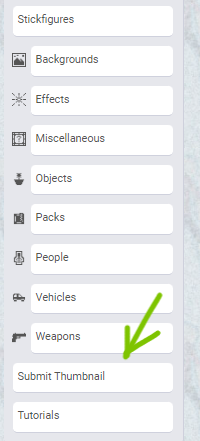
After submitting your figure, log in to the site and click on the “Submit Thumbnail” button on the left side of the screen.You need to be quick so that the thumbnail submission is close to the stickfigure submission, so they can be easily located when it is time for the submission to be uploaded. I recommend making the thumbnail before submitting the figure so that you can easily submit it right after submitting the figure.
Step 2: How to submit a thumbnail
ㅤ
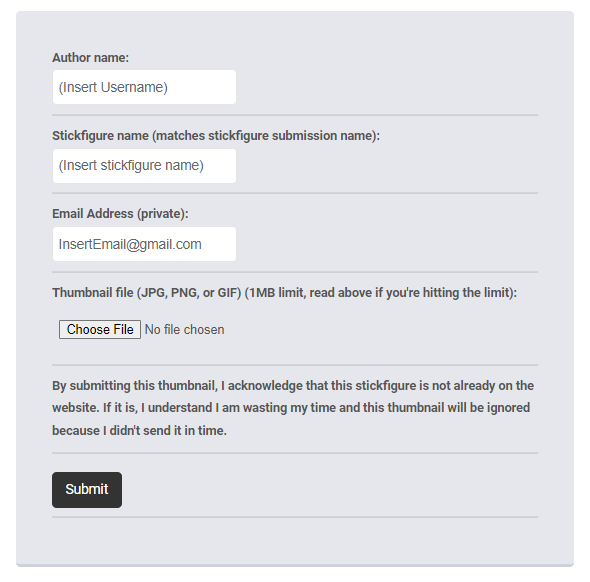
Once you’ve clicked the “Submit Thumbnail” button, you’ll come to a page with some spaces to fill out, just fill them in accordingly and attach your thumbnail, which should be less than 1 Megabyte because apparently sticknodes can’t handle an image with more than 14 pixels, after that just press submit and the image will be sent to the sticknodes email.Then you should have successfully submitted the thumbnail, if it didn’t work, you probably did something wrong like enter a different email or using an image that isn’t 1 MB or lower, which you can resize with a tool linked on the page. Anyways, that’s all you really need to do, not entirely difficult but this guide is just a JIC (Just in case).
Stick Nodes®
A stickfigure animation app created for mobile devices!
Create your own stickman animations on your Android or iOS device!


fun fact
you can really just attach an image to your submission email
half the people do that and it works fine as well as long as the gif (if its a gif) isn’t over 1mb
ps nice guide
Actually helpful because I had no idea how to actually do this 💀