


@infiniteguess


Joined on June 8th, 2020, this user has been a member for 2,204 days and is the 36,947th person to register an account.
Has 123 submissions, the first one uploaded on August 31st, 2019 and the most recent on January 12th, 2025.
Of those, 39 have been featured and 106 have won Users' Choice.
On average, each submission earns 4,335 downloads.
In total, they have been download 537,586 times.
Counting every individual stickfigure, including the contents of all packs, this user has technically made and submitted 717 stickfigures.
On average, when this user rates stickfigures, they are 87% positive.
Also, they are typically 100% positive when rating animation spotlights.
Has made 503 comments on non-activity pages of the site. Alternatively, this user has made 8,095 comments on actual activity pages of the site.
This user also has been featured in the Animation Spotlights 2 times.
This member is a Users' Choice voter!
Their current voting streak is 0 and their longest streak is 816 consecutive votes.
 IGOCGOwner
 QuesoOwner
 InfiniteG PFP storageOwner
 The Guess GuideOwner
- Test stuffOwner
- Stick News AltOwner
 Stick News NetworkOwner
 Macaroni Saladadmin
- 𝐅𝐨𝐫𝐠𝐞 𝐂𝐨𝐦𝐩𝐞𝐭𝐢𝐭𝐢𝐨𝐧 𝟐𝟎𝟐𝟑 (Judges)admin
 Rene’s Groupadmin
- Game Animations!admin
 The StickNodes Smash DLC!admin
 Interactive Storiesadmin
- Sticknodian Minecraft Servermod
 Ouroborosmod
 𝐅𝐨𝐫𝐠𝐞 𝐂𝐨𝐦𝐩𝐞𝐭𝐢𝐭𝐢𝐨𝐧 𝟐𝟎𝟐𝟑mod
 Spider-Man: King Of The Webmod


-
YOOOO MY NEW PHONE JUST GOT DELIVERED
-
 Replying to comment by:
Lemon shut up
-
Replying to comment by:
IG with no fabricators looks weird now
-
Replying to comment by:
I mean it
(I don’t mean it)
-
Once I hit 100 stickfiggas I’m leaving this site forever
-

@ralph prepare to kill off a few figgas
2022-09-30 16:55:28 UTC-
 Replying to:
I agree with this
2022-09-30 17:00:49 UTC -
 Replying to:
legitimately my strategy no cap
2022-10-01 12:11:23 UTC
-

That’s what they all say
2022-09-30 16:57:00 UTC-
Replying to:
I mean it
(I don’t mean it)
2022-09-30 16:58:41 UTC
-

Will you truly leave, would you return?
We’d just be guessing forever, infinite guessing.
2022-09-30 17:38:32 UTC-
Replying to:
Lemon shut up
2022-09-30 18:22:44 UTC
-
Replying to comment by:
People apparently like your post, it has 10+ likes
-
Replying to comment by:
Damn wtf this is smooth
-
Replying to comment by:
Not really
-
Replying to comment by:
I never save these lmao
-
Replying to comment by:
Commissions start at 1 cent
-
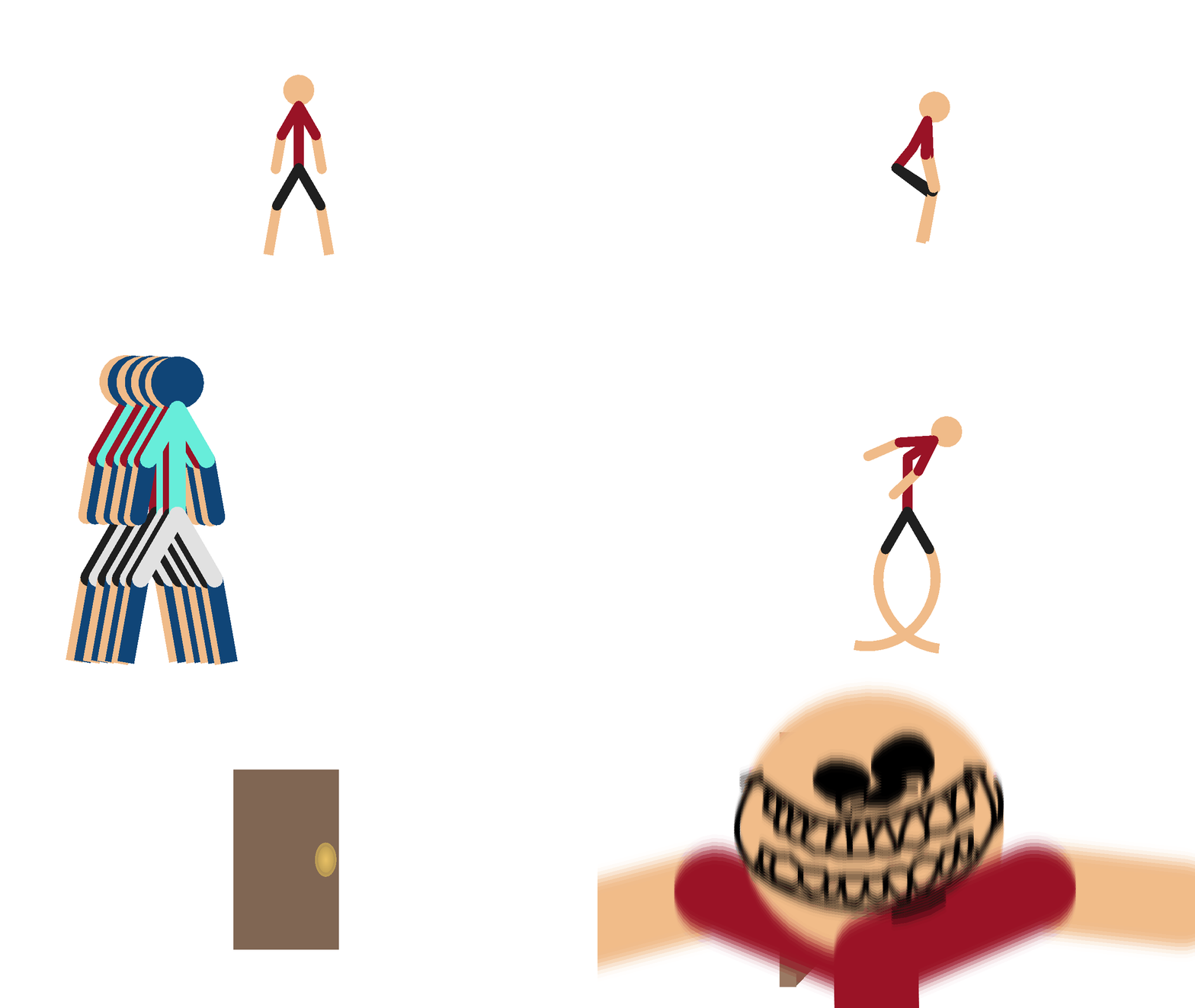
Aaaaaaugh x21
-

I need a default screensaver ASAP
2022-09-29 23:49:09 UTC-
Replying to:
Commissions start at 1 cent
2022-09-30 00:46:05 UTC-
Replying to:
That’s too much 😩
2022-09-30 01:18:12 UTC
-

This is what happens when I’m forming a dream
2022-09-29 23:52:40 UTC -

stick figure twerking
 2022-09-29 23:52:49 UTC
 -

this, just the entire thing
 2022-09-29 23:58:47 UTC
 -

jade humor
2022-09-29 23:59:49 UTC -

Hitting that cha cha
2022-09-30 00:31:45 UTC -

This is a masterpiece. You deserve to dethrone Ralph for this animation. Forget all the famous animators and artist. Forget Pablo Picasso, you are the best artist/animator I’ve ever seen.
2022-09-30 00:45:19 UTC-
Replying to:
Not really
2022-09-30 02:07:21 UTC-
Replying to:
It was a joke
2022-09-30 02:25:08 UTC
-

Im not even concerned about your sanity with these posts at this point
Youve surpassed that point and now you’re just floating
2022-09-30 00:49:44 UTC-
Replying to:
Also give project file
2022-09-30 01:44:59 UTC-
Replying to:
I never save these lmao
2022-09-30 02:04:59 UTC-
Replying to:
I hope your boots kill you in your sleep
2022-09-30 02:20:54 UTC
-
Replying to comment by:
why he built like a

(cool character tho)
-
Replying to comment by:
8/10, good space conservation
-
Replying to comment by:
I want to use Pivot 3 or Pivot 4 figures, how do?
How do I download/import new stickfigures?
How do I use a pack (ZIP file)?
When importing a stickfigure, the app is giving me an error message – what do I do?
How can I share my animation (GIF or MP4)?
Why is my GIF animation not moving on my iOS device?
How can I upload my animation to Youtube?
How can I add sounds/music/voices to my animation?
How can I delete stickfigures/projects/exports from my device?
How can I remove an imported stickfigure from the library of my project?
How can I add more sounds to import?
How can I create a ZIP (also how do I submit a ZIP or submit stickfigures)?
How do I export in high quality?
If I buy Pro, do my projects and stickfigures carry over from the Free version?
I have an idea for Stick Nodes, will you add it?
Q. I want to use Pivot 3 or Pivot 4 figures, how do?
A. By default, Stick Nodes can easily import STK files made with Pivot 2 and lower. If you have a Pivot 3 or 4 stickfigure, you will need to DOWNSAVE it using Pivot 4. Open your stickfigure in Pivot 4, edit it, and re-save it as a V2 file. See this image.Q. How do I download/import new stickfigures?
A. Check the dropdown answer at the top of the stickfigures page.Q. How do use a pack (ZIP file)?
A. Check the dropdown answer at the top of the stickfigures page.Q. When importing a stickfigure, the app is giving me an error message – what do I do?
A. If you’re importing a Pivot STK file, make sure the stickfigure was made with Pivot 2.2.7 or earlier (not Pivot 3 or Pivot 4, you can use Pivot 4 to re-save a stickfigure as a 2.2.7 file and then import that).If you’re importing a NODES file, make sure your Stick Nodes app is up-to-date as this is most likely the issue. If you’re using an older version of the app, you may be trying to import a stickfigure that was made with a newer version of the app. As a result, your Stick Nodes app doesn’t know how to open the file.
Q. How can I share my animation (GIF or MP4)?
A. After exporting your animation as either a GIF or MP4 file, go to the Gallery/Camera Roll of your device. Find the file you just created and share it to any social network as you would with any other piece of media on your device. (Note you cannot share a GIF file to Youtube as it is not a video, read below to find out how to convert a GIF to a video file.)Q. Why is my GIF animation not moving on my iOS device?
A. This is an old issue for IOS users, as of recent IOS versions GIFs will play just fine in your gallery. If you notice your GIF is not animating, and you have an older IOS version, that is the issue. The GIF will still play fine if uploaded/sent via email.Q. How can I upload my animation to Youtube?
A. If you have the Pro version of Stick Nodes, simply export your animation as an MP4 file. Afterwards, go into the Photos/Camera Roll on your device and find this video file. From there, you can share it to Youtube just the same as you would with any other video on your device.Now, if you only have the Free version, you’ll be limited by only being able to export a GIF file. After exporting, you’ll need to import this GIF into another app or desktop-based video-editing program and re-export it as a video file. You would then upload this file to Youtube.
Q. How can I add sounds/music/voices to my animation?
A. As of the 1.6.0 update, Pro users can add sounds to their animations from within the app! Select a frame and look under Frame Tools for the sound options.For Free users, however, all is not lost. You can very easily take your exported GIF or MP4 files and import it into another app or desktop-based video-editing program. From there, you’ll more than likely be able to add sounds/music/voices and re-export your animation as a video file.
For desktop, programs like Windows Movie Maker, Flash, or iMovie would very easily do the trick. I’m sure there are also many apps like this as well.
Q. How can I delete stickfigures/projects/exports from my device?
A. As of the 1.6.0 update, you can delete stickfigures/projects from the Import/Open windows in the Stick Nodes app. To delete exports, go to the Camera Roll/Gallery on your device and delete them like any other photo/video.Q. How can I remove an imported stickfigure from the library of my project?
A. Since the 3.0.0 update of Stick Nodes, you can “Edit” the list of imported stickfigures (see the edit icon next to the imported stickfigures lists in the app). From there you can rename and delete-from-the-project any imported stickfigures.Note that deleting a stickfigure from the library of a project will remove that stickfigure from all frames as well!
Q. How can I add more sounds to import?
A. If you’re on Android, the app should automatically find compatible sounds in your /download/ folder (they must be MP3 and less than 256kb in size). So simply Google for a sound you want, download the file, then open Stick Nodes and go to import the sound – it should be…[Read more] -
Replying to comment by:
Stick Nodes is a simple-but-powerful stickfigure animation program created for mobile devices. Easily create your own animations of moving stickfigures right on your tablet or phone!
Easy for new animators but incredibly robust for more skilled users – the simplicity of Pivot with the power of Flash!
The Pro version of Stick Nodes has extra functionality for sound effects, MP4 (video) exporting, no ads/watermark, and extra stickfigure filters (blur, glow, saturation, hue-shift, color-inversion, and tint)!
Features for both Free/Pro versions include:
Automatic customizable frame-tweening, make your animations smoother
A simple camera to pan/zoom/rotate around the scene, similar to the \”v-cam\” in Flash.
Movieclips allow you to create and reuse/loop animation objects within your projects.
A variety of shapes, color/scale on a per-segment basis, gradients – create any \”stickfigure\” you can imagine!
Textfields allow for easy text and speech in your animations.
Add all kinds of sounds effects to make your animations epic.
Apply different filters to your stickfigures – transparency, blur, glow, and more.
Join stickfigures together to easily simulate holding/wearing objects.
A large community full of all kinds of…interesting characters, and other animators.
Over 30,000+ stickfigures (and counting) to download from the website.
Export to GIF (or MP4 for Pro) to share your animation online.
Compatibility with pre-3.0 Pivot stickfigure files.
Save/open/share your projects, stickfigures, and movieclips.
And all the other typical animation stuff – undo/redo, onion-skin, background images, and more!
Stick Nodes
Stick Nodes comes in a few languages as well:English
Español
Français
Japanese
Filipino
Português
Russian
Türkçe - Load More


FINALLY NOW I DONT HAVE TO WAIT LIKE 3 YEARS JUST TO SAVE A LARGE PROJECT
I CAN MAKE BOOTS IN HIGHER QUALITY
I CAN ACTUALLY ABUSE EFFECTS WITHOUT MY PHONE CRASHING LETS GOOOOOOO
Imagine animating on a phone
Hard as heck
How
Its small for my hands
I remember getting my iPad 7 instead of the iPad 2, it was so much faster, I know how you feel. The excitement. Although I didn’t have Sticknodes on my old iPad
Congratulations!
* Cries in Android *
Android is inferior in everything. (Says the iPhone users crying behind their security wishing they had apks and the freedom android has) yeah android isn’t that bad. I never used it, but it has the google play store which has more fun apps(sometimes) and also has apks and emulators
(its an android)
Good for you?
I felt the same way when I got my new tablet, Good for you!
Check your mailbox my package just got delivered (there’s a pipebomb in the mailbox)
BOOTS
WHY ARE WE YELLING AHHHHHHH